Free Large Print Tiler
Print any reference or line drawing at true physical size across as many pages as it takes: poster sizes up to A0, blank pages skipped, cut lines, alignment marks and an assembly-map cover, as one PDF. Free, with no sign-up, and your picture never leaves your device.
Drop an image here, or paste from clipboard
Your image stays on your device. Nothing is uploaded.
JPG, PNG, WebP, GIF, AVIF or BMP
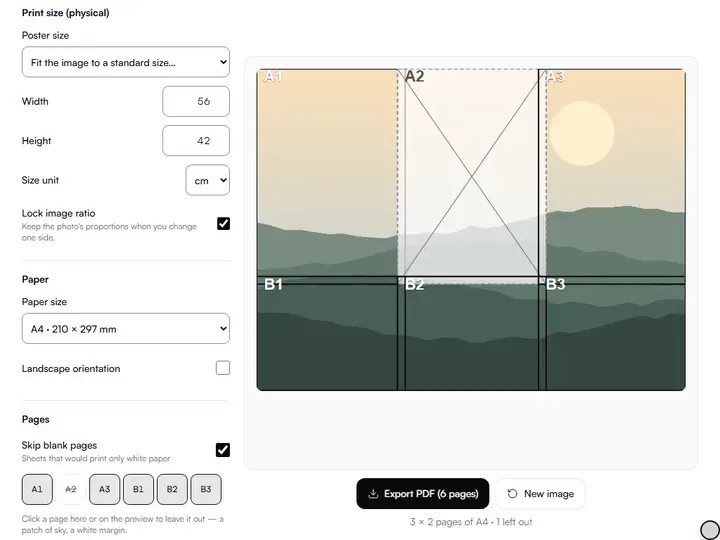
Print size (physical).Width and Height set the finished print in mm, cm or in; Lock image ratio keeps the photo's proportions.
Paper size and orientation.Paper size offers A4, A3, A2, US Letter, Legal and Tabloid, and Landscape orientation turns every page sideways.
Printer margin and overlap.Printer margin (0–25 mm, default 8) clears the unprintable edge; Page overlap (3–40 mm, default 10) repeats a strip at each seam.
Export PDF.Export PDF counts the pages and downloads them as one PDF, led by an assembly map with a 100 mm scale check.
- Free
- No sign-up
- Runs in your browser: your image never leaves your device
What is tiled printing?
Tiled printing is a way to print one image larger than the printer's paper by splitting it into page-sized sections that are taped together into a single sheet. This tiler takes the finished size in mm, cm or inches, slices the image across A4 to A2, Letter, Legal or Tabloid pages, and exports one PDF at true physical scale.
How to use the Large Print Tiler
The tool takes 6 steps, all on your device.
Drop in your image. It stays on your device. A photo, a scan, or line art from the Photo to Line Art tool all work.
Set the physical size in mm, cm or inches, or pick a poster size from A3 to A0 or 24 × 36 in; the ratio lock keeps the proportions.
Choose your paper size and orientation, and set your printer's unprintable margin.
Adjust the overlap: the duplicated strip that makes taping pages together forgiving.
Check the layout preview: every rectangle is one page, labeled A1, A2, B1 and so on. Click a page to leave it out.
Export the PDF, print it at 100% / “actual size”, and assemble with the crosshairs.
What the Large Print Tiler does
The Large Print Tiler prints a picture at true physical scale over many pages, with map-style labels and crosshairs in the overlap.
True physical scale
The Large Print Tiler computes every page in millimeters and writes it to the PDF at 72 points per inch, so a 10 cm span in the layout measures 10 cm on paper when printed at 100%. That fixed scale is what a measured transfer needs, and it places the tiler among the artwork photo tools that prepare references for the easel.
Map-style page labels
Page labels print a grid code and page number, such as Page B2 · 6 of 12, at the top of each sheet. Rows take letters and columns take numbers, so A1 is the top-left page.
Crosshairs in the overlap
Alignment crosshairs sit on the center line of each shared overlap strip, three to a seam. Laying one page's crosses over its neighbor's lines up the join.
Layout preview to scale
The layout preview draws every page as a rectangle over the image at its real proportion. Seams that cross a face or a hand show up before printing, and a click leaves a page out; blank pages drop out by themselves.
A grid that crosses seams
Light 10 mm grid measures its lines from the image's own top-left corner, not from each page. The squares continue unbroken across every seam.
Images stay on your device
The Large Print Tiler slices the image and builds the PDF inside the browser, with no upload. JPG, PNG, WebP, GIF and AVIF files can be dropped, chosen or pasted.
For cartoons, templates and wall-size references
Working painters, draughtsmen and art teachers tile a print for cartoons, templates and wall-size references.
Working painters
A 60 × 80 cm transfer cartoon prints on 12 portrait A4 pages at the default margin and overlap.
Draughtsmen
Light 10 mm grid over a full-size print gives a squared reference for copying a drawing square by square.
Art teachers
Page labels tell each student where a sheet belongs when a class assembles a tiled mural template.
Printing big when your printer is small
A home printer takes A4 or Letter paper, but transfer cartoons and full-size templates often need to be much bigger. Tiling splits one large image across many ordinary pages, each carrying a slice of the picture at exactly the right physical scale. Tape the slices together and a 60 × 80 cm reference comes off a machine that only knows A4.
The one rule that makes or breaks tiled printing: print at 100%. Any “fit to page” or “shrink to printable area” setting silently rescales every page, and a slightly shrunken reference is enough to spoil a measured transfer. With Page labels on, every page carries that reminder in its footer.
Margins, overlaps and crosshairs
Most desktop printers leave a blank border, so the Printer margin setting, 8 mm by default, keeps the image inside the printable zone. Neighboring pages also share a duplicated strip, 10 mm by default. When you assemble, you align the duplicated strips rather than butt-joining edges, and small paper-feed drift disappears into the overlap.
The crosshairs sit inside those overlap strips. Line up the crosses from two pages, tape the seam, and the join is as straight as your cutting. For a clean finish, trim one page's edge along the overlap with a craft knife and a metal ruler, lay it over the matching strip on the next page, and tape from behind.
Using tiled prints for transfer
The classic use is a full-size cartoon. Convert the reference to outlines with photo to line art, print the lines at the exact size of the canvas, tape the tiles, then transfer with graphite paper or a pounced charcoal back. Because the page geometry is computed in millimeters and written at 72 points per inch, what you set on screen is what comes off the printer.
For references rather than transfers, the optional 10 mm grid turns a tiled print into a gridded reference for square-by-square enlargement.
Choosing a sensible size
The Export PDF button tells you the page count before you commit: a 100 × 140 cm poster on A4 is 36 pages of taping in portrait, 32 in landscape. Large formats are worth it for transfer cartoons. For pure reference, a half-size print of 50 × 70 cm needs 9 portrait A4 pages, and the drawing scale and enlargement calculator then doubles every measurement you take from it. The first image loaded on the page starts at its pixel size printed at 150 dpi; type any size over it.
Further reading
The page below goes further into the ideas the Large Print Tiler works with, and opens on the site named beside it.
- Transfer methods: grid, graphite and projection (ArtisticMasterclass.com)
Tips from a working artist
From Sujith Puthran, artist and founder: what I actually do at the easel.
Print page A1 first and check it with a ruler before spending paper on the rest: one mis-scaled page means the whole set is wrong.
Trim and tape from the back; front tape catches the light and shows through thin paper when you trace.
For transfer cartoons, export line art from the Photo to Line Art tool first: pale lines use far less ink than a full photo.
Assemble on a window or light table: the overlap strips line up at a glance when light shows through both pages.
Label the back of each tile with its grid code as you cut it: an unlabeled stack of 20 similar pages is a puzzle nobody enjoys.
Why your picture stays on your device
The Print Tiler is a program your browser downloads and runs by itself. When you choose a picture, the browser reads it from your files and does the work on your own phone or computer; no copy is sent to this site or to anyone else, and what you export is saved straight from the browser. That is why there is nothing to upload and nothing to sign up for. The privacy page says what the site does collect.
Questions about the Large Print Tiler
The 7 questions below cover print scale, the overlap, page counts and the largest size, then the PDF, grids and privacy.
Printing it
How do I make sure the pages print at the right size?
To make sure the pages print at the right size, in your print dialog choose 100%, “actual size” or “custom scale 100%”, never “fit to page”. Then verify: measure any 10 cm span on the first page with a ruler. The PDF is written at true physical scale, so a correct print pipeline reproduces it exactly.
What is the overlap for?
The overlap prints the same strip of the image on two neighboring pages. You trim one page along that strip and lay it over the matching strip on the next, so the picture itself aligns the seam instead of the paper edges.
How many pages will my print need?
The page count is columns times rows, and the line beside the export button shows both, such as 4 × 3 pages of A4 for a 60 × 80 cm print.
How big can I go?
You can go as big as the browser's memory allows: the tool sets no page limit, and a larger print simply adds columns and rows. Very large layouts can run out of browser memory, and the tool then reports that the export failed and suggests a smaller print size.
PDF and privacy
Why does the PDF use JPG slices instead of the original file?
The PDF uses JPG slices instead of the original file because each page embeds only its own slice at up to 300 effective dpi, re-encoded as a quality-90 JPG, which keeps a many-page PDF compact. A slice never gets more pixels than the source holds for that area, so a small photo is not upsampled.
Can I print a grid for the grid-transfer method?
Yes, you can print a grid for the grid-transfer method: turn on the Light 10 mm grid option. The grid is aligned to the image coordinates, so squares continue seamlessly across page seams. For finer or ratio-based grids, GridMakerPro specializes in that.
Does the image get uploaded?
No, the image does not get uploaded. Slicing and PDF generation happen entirely in your browser. The file never leaves your device.
Load an image, type the finished width, and export a PDF you can tape into one sheet.
Free · No sign-up · Runs in your browser