Free Image Simplifier
Strip photo noise and fussy detail out of a reference so you can see, and paint, only the shapes that matter. Exports PNG and JPG. Free, with no sign-up, and your picture never leaves your device.
Drop an image here, or paste from clipboard
Your image stays on your device. Nothing is uploaded.
JPG, PNG, WebP, GIF, AVIF or BMP
Five simplification methods.Choose Painterly, Shapes, Flat color, Squint or Smooth; each one removes detail from the same photo in its own way.
Strength slider.Set the amount from 1 to 10, starting at 4, and watch the preview update after each change.
Focal point.Keep full detail around your center of interest and let the simplification take over toward the edges.
PNG or JPG export.Download the simplified reference at the photo's own pixel dimensions, not the smaller preview size.
- Free
- No sign-up
- Runs in your browser: your image never leaves your device
What does it mean to simplify an image for painting?
Simplifying an image for painting means removing fine detail and texture from a reference photo while keeping its big shapes of value and color. Painters simplify because a painting reads through its large shapes: copied photo detail makes the work look fussy, not more realistic, and the simplified reference shows which shapes are worth painting.
How to use the Image Simplifier
The tool takes 7 steps, all on your device.
Drop or paste your reference photo, or click “Choose image”. Nothing leaves your device.
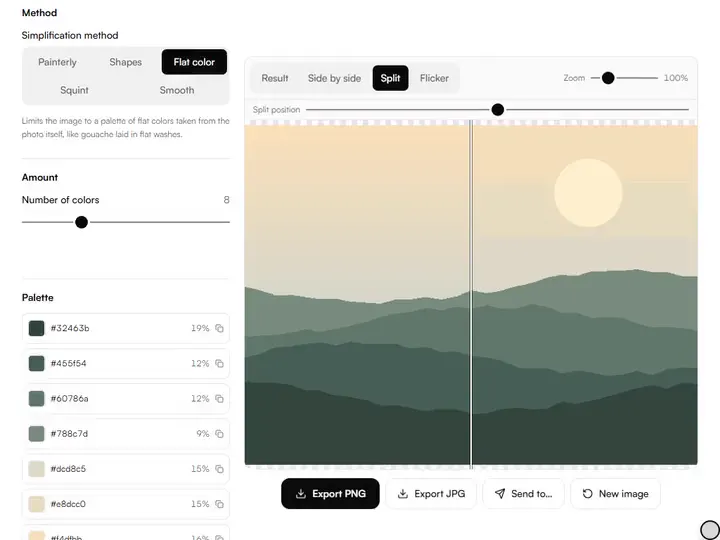
Pick a method: Painterly for a blocked-in look, Shapes to reduce the picture to a set number of masses, Flat color for a limited palette, Squint for a soft blur, Smooth for edge-preserving cleanup.
Raise Strength (or set the Number of shapes or colors) until the detail you don't want to paint disappears and the big shapes remain.
With Smooth, adjust Detail preservation to decide how much texture survives.
Optional: turn on “Keep detail around a focal point” and click your center of interest, so the rest of the picture simplifies more than it.
Compare against the original with the split slider or flicker view.
Export the simplified reference as PNG or JPG at full resolution.
What the Image Simplifier does
The Image Simplifier takes detail out and keeps the masses, with four methods: Painterly, Flat color, Squint and Smooth.
Detail out, masses kept
The Image Simplifier removes texture and incidental detail from a reference while the large masses of value and color stay where they are. Among the value and tone tools for artists, it is the cleanup step before planning: the reference shows what to block in, not every leaf and reflection.
Painterly, an anisotropic Kuwahara filter
Painterly reads the direction of the forms at every pixel, then averages color over an ellipse stretched along that direction, split into eight sectors, favoring the most even sectors. Texture averages away, edges stay crisp, and the smoothing follows the forms like brushstrokes. It runs on your graphics card when WebGL2 is available.
Shapes and flat color
Shapes groups pixels into compact regions of similar color (SLIC superpixels), then merges the most alike neighbors until the number of shapes you asked for remains. Flat color picks 2–24 colors from the photo itself by k-means in OKLab and lists them, darkest first, with the share each covers.
Squint, a soft blur
Squint runs two box-blur passes over the color channels, which approximates a soft Gaussian blur. Edges soften along with detail, the trade the eye makes when it half-closes.
Smooth, a bilateral filter
Smooth weighs each neighboring pixel by its distance and by its difference in OKLab lightness. Pixels on opposite sides of a strong value edge barely mix, so folds and silhouettes survive while flat areas clean up.
Processed on your device
Every method runs in your browser, and the photo is never uploaded. The preview works on a copy capped at 1,600 pixels on the long edge. Exports rerun the method with its settings scaled to the export's size, so they match the preview; Painterly and Smooth export at up to 3,200 pixels and Shapes at up to 2,400 on the long edge.
For artists who paint from photographs
Beginners, working painters, illustrators and art teachers simplify a photograph for different reasons, set out below.
Beginners
Beginners can alternate the original and the Squint result in Flicker view to learn which details vanish first once texture stops registering.
Working painters
Working painters can clean a grainy phone photo with Smooth at a high Detail preservation and still keep its value edges.
Illustrators
Illustrators can set Flat color to five or six colors for a poster plan to ink or letter over, and copy each color's hex code.
Art teachers
Art teachers can run one reference through all five methods to show a class that simplifying is a set of choices, not one filter.
Why simplify a reference at all
A photograph contains far more information than a painting should: every blade of grass and sparkle of chrome, recorded with equal emphasis. Painting all of it produces tight, fussy work; skilled painters paint a few big shapes well and let the eye invent the detail.
That selectiveness is a learned skill, and this tool trains it by doing the selection mechanically: texture, noise and incidental detail go, while the big value masses, color relationships and edge structure stay. Work from the simplified version for the block-in; consult the original at the end.
The methods fall into two families. Painterly, Smooth and Shapes are edge-aware, flat inside a shape and sharp at its boundary; Squint and Flat color treat the whole frame evenly. Sharp boundaries also help photo to line art find fewer stray lines.
The settings, explained
Strength controls the degree of simplification: kernel size for Painterly, blur radius for Squint, smoothing radius for Smooth. Shapes and Flat color ask instead for a number: how many masses or colors the picture may keep. Start gentle and simplify until the detail you were dreading painting is gone; that is the right setting, not the most extreme one.
Focal point: the detail area is a share of the picture's longer side. Inside its inner part the photo stays untouched; toward its edge the simplified version fades in, and beyond it the simplification is complete. That mirrors how painters keep finish for the center of interest and let the rest go.
Detail preservation appears with the Smooth method. It sets how sharply the filter respects value edges: high values keep fabric folds and leaf edges while cleaning flat areas; low values let more of the image melt together.
Compare views: use the split slider to audit exactly what was removed. If an edge you care about dissolved, lower the strength. The goal is never maximum smoothness; it is a reference that tells you less, more clearly.
A useful sequence is this tool followed by a value study: simplify first to kill the texture, then posterize the clean version into value steps in the value study maker. The value study comes out with big, designable shapes instead of speckles.
Further reading
The page below goes further into the ideas the Image Simplifier works with, and opens on the site named beside it.
- Simplification and seeing the big shapes (ArtisticMasterclass.com)
Tips from a working artist
From Sujith Puthran, artist and founder: what I actually do at the easel.
I simplify every photo reference before I draw from it. If I can't name a detail's job in the composition, I don't want it on the canvas.
Squint mode is the best teacher: flip between it and the original until you can predict what will survive the blur. When your predictions get good, you're seeing like a painter.
For landscapes, Painterly at medium strength turns foliage chaos into paintable masses: the single biggest time-saver I know.
Don't simplify away your focal point. Keep strength lower around the area of interest; you can always soften the rest in the painting.
Combine with the Notan Generator: simplify, then check the notan. A composition that survives both is worth painting.
Why your picture stays on your device
The Simplifier is a program your browser downloads and runs by itself. When you choose a picture, the browser reads it from your files and does the work on your own phone or computer; no copy is sent to this site or to anyone else, and what you export is saved straight from the browser. That is why there is nothing to upload and nothing to sign up for. The privacy page says what the site does collect.
Questions about the Image Simplifier
The 6 questions below help with the choice of method first, then with how far to simplify, local sharpness and privacy.
Choosing a method
Which method should I choose?
Choose the Painterly method for most painting references. It mimics how an artist blocks in. Squint for a quick value-and-mass check. Flat color for graphic, poster-style planning. Smooth for noisy photos where you want texture gone but edges kept.
Where do Flat color's colors come from?
Flat color's colors come from the photo. The tool samples up to 40,000 pixels, groups them into the number of colors you set by k-means in OKLab (a perceptual color space), and maps every pixel to its nearest color. Specks smaller than 0.02% of the picture are merged into the shape around them.
Is this just a blur filter?
No, this is not just a blur filter. A plain blur destroys edges along with detail. The Painterly and Smooth methods here are edge-aware: they flatten inside shapes while keeping the boundaries between shapes sharp, which is what makes the result useful to paint from.
Limits and privacy
How much should I simplify?
Simplify until the detail you don't intend to paint is gone and the big shapes are still clear, then stop. Over-simplifying removes information you need; the split view against the original shows you exactly what was lost.
Can I simplify one area and leave another sharp?
Yes, you can simplify one area and leave another sharp. Turn on “Keep detail around a focal point” and click your center of interest: the photo stays sharp there and blends into the simplified version toward the edges. The Detail area slider sets how far the sharp zone reaches.
Does the Image Simplifier upload my image?
No, the Image Simplifier does not upload your image. All processing runs in your browser on your device; nothing is sent to a server.
Load a reference photo, pick a method and keep only the detail your painting needs.
Free · No sign-up · Runs in your browser