Free Photo Upscaler for Prints
Enlarge a photo of your artwork 2× or 4× for a bigger print. A faithful resample that adds nothing sits beside a model that keeps brushwork and pencil hatching, with a loupe to compare them and the print size stated. On your device; nothing is uploaded. Exports PNG and JPG. Free, with no sign-up.
Drop an image here, or paste from clipboard
Your image stays on your device. Nothing is uploaded.
JPG, PNG, WebP, GIF, AVIF or BMP
Two honest methods.A faithful resample that invents nothing, and a model that is said to invent. You choose with both on screen.
A loupe, not a promise.One patch of your picture at its new size, plain enlargement against the method you picked.
The print size, stated.What the photo printed at before and what it prints at now, in cm or inches at your DPI.
Chosen on artwork.The model was picked by test on an oil, a watercolor, a graphite drawing and a pastel.
- Free
- No sign-up
- Runs in your browser: your image never leaves your device
How do I enlarge a photo of a painting without losing quality?
To enlarge a photo of a painting without losing quality, use a resample that works each new pixel out from those round it, then undo the softness enlarging leaves. This upscaler does that at 2× or 4× and states the new print size. A model adds crispness, but it draws detail the camera never recorded, so compare both before printing.
How to use the Photo Upscaler for Prints
The tool takes 6 steps, all on your device.
Choose a photo of your artwork, or try a sample.
Pick 2× or 4× under Enlarge by, and read the Print size line.
Move the loupe to a passage that matters: drag Loupe across and Loupe down, or click the small picture.
Compare Faithful with Model. The model comes by itself when you choose it (about 22 MB with its engine, once, from this site) and is slow on a large photo.
With Faithful, set Sharpening to Off, Standard or Strong.
Set the print resolution, then export PNG or JPG. The whole picture is enlarged at that point.
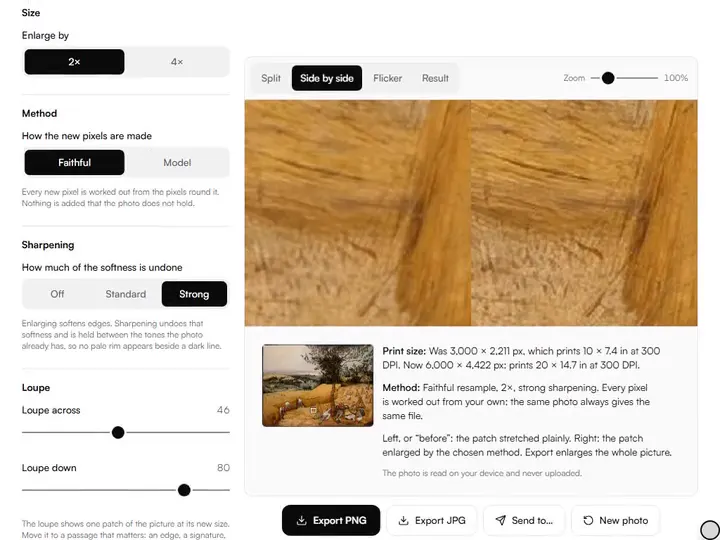
What the Photo Upscaler for Prints does
The Photo Upscaler for Prints enlarges a photo for print with guarded sharpening and no seams, up to 40 megapixels, with the DPI written in.
Made for prints
One of the artwork photo tools: it takes a finished photo of a work up to the size a print needs.
The same file every time
The faithful method is plain arithmetic. One photo and one setting always give the same pixels.
Guarded sharpening
Sharpening is held between the tones the photo already has, so no pale rim grows beside a dark line.
No seams
The model works in small tiles that overlap and fade into each other. The joins do not show.
Up to 40 megapixels
The whole photo is enlarged, not a reduced copy. A 12-megapixel phone photo cannot be doubled inside that limit, so it is enlarged 1.75× and the tool says so.
DPI written in
The exported PNG or JPG carries the print resolution you chose, so a print shop reads the right size.
How it compares with other browser upscalers
Each was given the same picture in a browser on 4 October 2026: a 256 px detail of an Ingres graphite portrait, Madame Désiré Raoul-Rochette in the Cleveland Museum of Art's open access, made by halving a 512 px detail, so the real picture is known. Closeness is PSNR against it, higher is closer. Only what was measured or read on each page is stated.
| Feature | This tool | PixConvert | Upscale.tools | Playcut |
|---|---|---|---|---|
| Closeness to the real picture at 2× | 31.0 dB faithful, 30.6 dB model | 28.1 dB | 27.7 dB (its 4× result, reduced) | No result: error on loading its model |
| A method that invents nothing | Yes | No | No | No |
| Model, as named on the page | Swin2SR lightweight 2× | Real-ESRGAN x2plus, x4plus | Real-ESRGAN general x4v3 | Real-ESRGAN x4 |
| Photo reduced before enlarging | No, up to 40 megapixels out | To 800 px | Not stated | To 1,024 px |
| Print size stated | Yes | No | No | No |
| Other servers the page contacted | None | 17 | 2 | 14 |
All three say they keep the picture in the browser, and no upload was seen. Upscale.tools finished its 4× in 1.6 seconds, far faster than the model here; PixConvert and Playcut use a graphics card where the browser allows it, which this tool does not. Playcut's error came in a test browser without graphics-card support and may not happen in yours.
For artists who need a larger file than the camera gave
Print sellers, painters with old photos and illustrators enlarge a file the camera made too small.
Print sellers
Take a photo that prints 20 cm wide up to the 40 cm a customer asked for, and see the cost in the loupe first.
Painters with old photos
A work that has been sold cannot be shot again. Enlarge the photo you have without repainting it.
Illustrators
Bring a small scan of a drawing up to print size and keep the pencil's own grain.
What enlarging a photo can and cannot do
A photo holds a fixed number of pixels. Enlarging it makes more pixels, and every new one has to come from somewhere. A resample works it out from its neighbours. The picture gets bigger and stays true, but it gains no detail: a hair-thin line that the camera blurred stays blurred.
A model takes the other road. It has seen many pairs of small and large photographs and draws what it judges should be there. That can look sharper, and it is a guess. On a painting the guess lands on your brushwork.
The faithful method
The faithful method uses a Lanczos resample, which weighs the six source pixels nearest each new one in each direction. It then removes the softness that enlarging adds, in a few passes, and holds every pixel between the darkest and lightest source pixels round it.
Nothing here depends on chance or on a download. The same photo at the same setting gives the same file on any device, and a second export matches the first byte for byte. For a file that will be judged against the original work, this is the safe method.
The model, and why this one
Most browser upscalers run Real-ESRGAN, a model built to restore damaged photographs. In our test on four artworks it scored below a plain resample on every one, and on a graphite portrait it smoothed the hatching away and redrew the eye as an ink line.
This tool uses the small 2× Swin2SR model instead. It was the closest to the real picture among the models we may ship, and it kept hatching, paper tooth and paint ridges. At 4× the model does the first doubling and the faithful resample the second.
How large can the print be?
Print size is pixels divided by resolution. A photo 3,000 pixels wide prints 25.4 cm wide at 300 DPI; doubled to 6,000 pixels it prints 50.8 cm. The Print size line does this sum for your photo before and after.
The print size and DPI calculator works out the resolution a print needs from its viewing distance.
Before you enlarge
Enlarging magnifies faults along with the picture. Straighten the photo and fix its color first, and enlarge last. If the file is going to a print shop, check that it is in sRGB with the color-accurate export.
If the work is still in your studio, a new photograph with more pixels beats any enlargement. Fill the frame with the work, or shoot it in overlapping parts and join them.
Further reading
The page below goes further into the ideas the Photo Upscaler for Prints works with, and opens on the site named beside it.
- Painting and drawing lessons on Artistic Masterclass (ArtisticMasterclass.com)
Tips from a working artist
From Sujith Puthran, artist and founder: what I actually do at the easel.
I put the loupe on the signature and on one soft edge. If both still look like my hand at the new size, the rest will.
For a print that hangs on a wall I enlarge to 150 or 200 DPI at the final size and stop. More pixels than the viewer can see are only a heavier file.
Why your picture stays on your device
The Upscaler is a program your browser downloads and runs by itself. When you choose a picture, the browser reads it from your files and does the work on your own phone or computer; no copy is sent to this site or to anyone else, and what you export is saved straight from the browser. That is why there is nothing to upload and nothing to sign up for. The privacy page says what the site does collect.
Questions about the Photo Upscaler for Prints
The 6 questions below cover quality, AI and the choice of 2× or 4×, then the model's speed, brushwork and privacy.
Enlarging
Can I enlarge an image without losing quality?
Yes, partly: you can enlarge an image without adding faults, so edges stay clean and nothing is smeared. You cannot gain detail the camera did not record.
Is this an AI image upscaler?
Yes, partly: this page has an AI image upscaler as one choice. The Model method runs a super-resolution network on your device after you ask for it. The Faithful method uses no model at all.
Should I use 2× or 4×?
Use the smallest that reaches your print size. At 4× every flaw of the photo is four times as wide, and a soft photo stays soft. A photo over 10 megapixels is enlarged 1.75×, 1.5× or 1.25×, the most that fits in 40 megapixels, by the faithful method.
The tool
Why is the model slow?
The model is slow because it runs on your device's processor, tile by tile, so that the photo never leaves it. On our test laptop a 1,200 × 900 px photo took about ten minutes; the faithful method took two seconds. The page shows the tiles done and the time left, and Stop ends it.
Does the model change my brushwork?
Yes, the model changes your brushwork slightly. Compare it with Faithful in the loupe on a passage you know well.
Does the Photo Upscaler for Prints upload my photo?
No, the Photo Upscaler for Prints does not upload your photo.
- The model test, the licences read, the method: openaccess-cdn.clevelandart.org/1947.209/1947.209_print.jpg
- The model test, the licences read, the method: openaccess-cdn.clevelandart.org/1973.142/1973.142_print.jpg
- The model test, the licences read, the method: openaccess-cdn.clevelandart.org/1927.437/1927.437_print.jpg
- The model test, the licences read, the method: openaccess-cdn.clevelandart.org/1958.27/1958.27_print.jpg
Enlarge a photo of your work, see exactly what changed, and know what size it prints.
Free · No sign-up · Runs in your browser