Free Artwork Photo Color-Accurate Export
Convert a photo of your artwork to sRGB so it shows the same colors everywhere. The tool names the color profile the file carries, converts it exactly, shows which colors did not fit, and embeds an sRGB profile. Sized and sharpened for web or print, on your device; nothing is uploaded. Exports JPG, PNG and ZIP. Free, with no sign-up.
Drop photos of your artwork
JPG, PNG or WebP, up to 20. They stay on your device: nothing is uploaded.
The profile, named.Display P3, Adobe RGB, ProPhoto or sRGB, told by the profile's primaries and not by what it calls itself.
An exact conversion.Done by Little CMS, an open-source color engine, running on your device.
What did not fit.The share of the picture that lay outside sRGB, marked on the picture, with three ways to bring it in.
Ready to post or print.A long edge in pixels or a size on paper at a DPI, sharpened to match, with the sRGB profile embedded.
- Free
- No sign-up
- Runs in your browser: your image never leaves your device
How do I convert an image to sRGB?
Convert an image to sRGB by reading its stored numbers through the color profile embedded in the file and rewriting them as sRGB values, then embedding an sRGB profile in the result. This tool does that in your browser: choose the picture, check the profile it names, and press Export.
How to use the Artwork Photo Color-Accurate Export
The tool takes 6 steps, all on your device.
Choose pictures, or drop up to 20 JPG, PNG or WebP files.
Read the first line under the picture: it names the color space the file is in.
If the file has no profile, choose under Read its numbers as only when you know it is not sRGB.
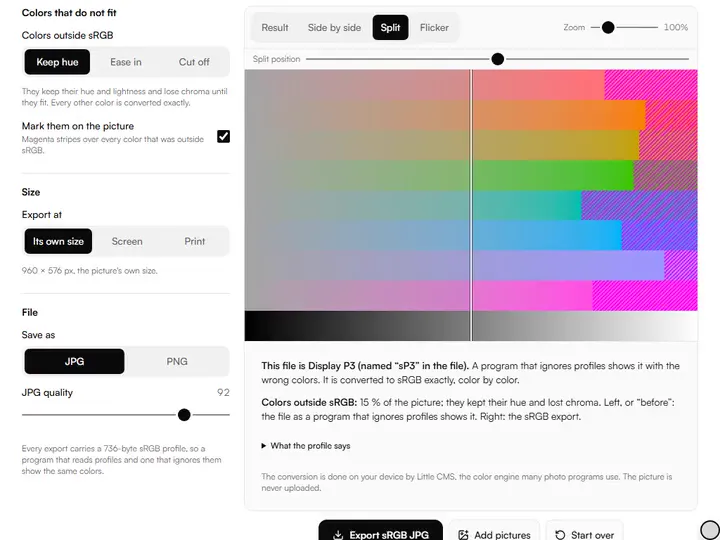
Under Colors that do not fit, choose Keep hue, Ease in or Cut off, and switch on Mark them on the picture to see where they are.
Under Size, keep its own size or set a long edge for screen or print; choose JPG or PNG.
Press Export sRGB JPG, or Export all for a ZIP, and read the report of what each finished file carries.
What the Artwork Photo Color-Accurate Export does
Artwork Photo Color-Accurate Export converts a picture to sRGB as the last step before it leaves you, handles files with no profile, and reads the result back.
The last step before a picture leaves you
Among the artwork photo tools, this is the one to run last: after straightening and white balance, before the file goes to a website, a shop or a printer.
Files with no profile
Read as sRGB, as programs do, or as Display P3, Adobe RGB or ProPhoto when you know better. A camera file marked Adobe RGB is spotted.
Keep hue
A color outside sRGB loses chroma only, in OKLab, until it fits. Its hue and lightness stay.
Before and after
The file as a program that ignores profiles shows it, against the export: split, side by side or flicker.
Up to 20 at once
One set of choices for a batch of up to 20 files, a ZIP of the results.
Read back from the file
After export the tool opens each finished file and reports its size, weight, profile and DPI label.
How it compares with other sRGB converters
Each was used in a browser on 3 October 2026 with one test file: a PNG and a JPG tagged Display P3 whose correct sRGB values are known. Only what was seen is stated.
| Feature | This tool | BrushCue Convert to sRGB | ICC to sRGB Converter (Kim2091) | NoFileUpload ICC viewer |
|---|---|---|---|---|
| Names the file's profile | Yes | No | No | In the JPG; not found in the PNG |
| Converts to sRGB | Yes | Yes | With the browser's own conversion | No |
| In-range test color | Correct | Correct | Correct | No conversion |
| Embeds an sRGB profile | 736 bytes | 3,024 bytes | No | No export |
| Shows which colors did not fit | Yes | No | No | No |
| Choice for out-of-range colors | Three | No settings | None | None |
| Size, sharpening, DPI label | Yes | No | No | No |
| Several files at once | Up to 20, ZIP | No | Yes, ZIP | No |
| Other servers the page contacted | None | 5 | 2 | 2 |
BrushCue also saves WebP, TIFF, BMP and HEIC, which this tool does not. The ICC to sRGB Converter says of itself that it is not a professional color management solution. The viewer decodes more of a profile's header than this tool lists.
For artists whose pictures change color between devices
Artists posting online, artists ordering prints and phone photographers export pictures whose color changes between devices.
Artists posting online
Shop listings, portfolios and social sites show the painting as you saw it.
Artists ordering prints
Send the lab an sRGB file at the print's size and DPI when that is what it asks for.
Phone photographers
A phone's Display P3 photo, converted before it is uploaded anywhere.
Why a painting's colors change between devices
A picture file stores numbers, and a color profile says what colors the numbers stand for. Many phones save photos in Display P3, iPhones since the iPhone 7 among them according to Wikipedia's article on DCI-P3, and many cameras can be set to Adobe RGB; both hold stronger reds, oranges and greens than sRGB. The same numbers read as sRGB give a duller picture: the strongest reds and greens lose their strength.
A program that reads profiles shows such a file correctly. One that ignores or strips them shows the numbers as sRGB, because a picture with no profile is sRGB according to the CSS Color Module Level 4, the web's rule. Converting to sRGB rewrites the numbers themselves, so both kinds of program show the same picture.
Converting to sRGB, and what cannot be kept
Every color sRGB holds is converted exactly: its numbers change and its appearance does not. A color outside sRGB has no sRGB numbers and something must give. Cut off clips each of red, green and blue at its limit, which is what a plain conversion does; it can turn the hue of a strong color and flatten a saturated passage into one tone.
Keep hue takes chroma away until the color fits and leaves hue and lightness alone. Ease in does the same and also moves the strongest in-range colors inward a little, so two colors that were both out of range still differ.
A file with no profile
Most files with no profile are sRGB already, and the tool treats them so: the numbers are kept and an sRGB profile is embedded. Some are not. A camera set to Adobe RGB may save its mark in the camera notes without embedding the profile, and an editor can strip a profile on export.
If the before view looks dull against your memory of the painting, try reading the numbers as Display P3 or Adobe RGB. The tool cannot know which is right for a file that does not say; the painting in front of you can.
Size, sharpening and the DPI label
For a screen, set the long edge in pixels. For print, give the long edge on paper and the lab's resolution, and the tool works out the pixels and writes the DPI label. A picture with too few pixels is exported at its own size and the page says what it will print at; it is never enlarged.
A picture made smaller is softer than the original, so the export is sharpened afterwards on lightness only: a fixed fraction of a pixel for a screen, and 0.1 mm on paper for a print, whatever the resolution. A picture kept at its own size is not sharpened.
Further reading
The page below goes further into the ideas the Artwork Photo Color-Accurate Export works with, and opens on the site named beside it.
- Photographing artwork: lessons on Artistic Masterclass (ArtisticMasterclass.com)
Tips from a working artist
From Sujith Puthran, artist and founder: what I actually do at the easel.
I check the reds first. If the marks sit on the one passage the painting is about, I choose Keep hue and look at it large before I post it.
I keep the original file. The sRGB copy is for sending; the wide one is the record.
Why your picture stays on your device
The sRGB Export is a program your browser downloads and runs by itself. When you choose a picture, the browser reads it from your files and does the work on your own phone or computer; no copy is sent to this site or to anyone else, and what you export is saved straight from the browser. That is why there is nothing to upload and nothing to sign up for. The privacy page says what the site does collect.
Questions about the Artwork Photo Color-Accurate Export
The 6 questions below cover Display P3 and sRGB, dull uploads and lost color, then the three methods and privacy.
sRGB and other spaces
What is the difference between Display P3 and sRGB?
The difference between Display P3 and sRGB is in the red and green: both use the same blue and the same tone curve.
Why do my colors look dull after I upload a photo?
Your colors look dull after you upload a photo because the file is in a wider space than sRGB, and the site either ignored its profile or removed it. Converting the file to sRGB before uploading fixes it.
Does converting to sRGB lose color?
Only colors outside sRGB change, and the tool reports what share of the picture that is and marks where.
The tool
Is this an sRGB converter for P3 photos from a phone?
Yes, this is an sRGB converter for P3 photos from a phone. A phone photo saved as a JPG with a Display P3 profile is named as Display P3 and converted. HEIC files are not read; save or share the photo as a JPG first.
Which should I choose: Keep hue, Ease in or Cut off?
Choose Keep hue for most paintings. Ease in when a saturated passage has detail you want to keep.
Does the Artwork Photo Color-Accurate Export upload my picture?
No, the Artwork Photo Color-Accurate Export does not upload your picture.
- Colour profiles, the colour engine, the spaces' primaries: en.wikipedia.org/wiki/DCI-P3 · checked 2026-10-03
- Colour profiles, the colour engine, the spaces' primaries: w3.org/TR/css-color-4 · checked 2026-10-03
- Colour profiles, the colour engine, the spaces' primaries: bottosson.github.io/posts/oklab · checked 2026-10-03
- Colour profiles, the colour engine, the spaces' primaries: en.wikipedia.org/wiki/ProPhoto_RGB_color_space · checked 2026-10-03
Name the profile, convert to sRGB, see what did not fit, and export at the size the picture is going to.
Free · No sign-up · Runs in your browser