Free Artwork Photo Straightener
Fix the perspective of a photo of your artwork: mark the four corners, or let edge detection find them, correct lens bowing, and get a flat, true-to-proportion image that records its print size. Exports JPG and PNG. Free, with no sign-up, and your picture never leaves your device.
Drop an image here, or paste from clipboard
Your image stays on your device. Nothing is uploaded.
JPG, PNG, WebP, GIF, AVIF or BMP
Auto-detect corners.Auto-detect corners places all four corners where the photo's two strongest upright edges meet its two strongest level edges.
Numbered corner handles.Drag corners 1 to 4 onto the canvas edge; a magnifier opens while you drag, and arrow keys nudge a focused corner.
True size (optional).Real width and Real height, in mm, cm or inches, give the straightened output the artwork's measured proportions.
Border trim and lens correction.Border trim shaves off tape, frame or wall; Lens correction straightens edges a close phone lens bowed outward or inward.
- Free
- No sign-up
- Runs in your browser: your image never leaves your device
What is an artwork photo straightener?
An artwork photo straightener is a tool that removes keystone distortion from a photo of a flat painting or drawing, turning the skewed shape the camera recorded back into a rectangle. You mark the artwork's four corners or let edge detection place them, optionally enter its real width and height, and export a flat JPG or PNG.
How to use the Artwork Photo Straightener
The tool takes 5 steps, all on your device.
Drop in a photo of your artwork. It never leaves your device.
The tool tries to find the artwork's edges automatically; if the guess is off, drag the four numbered corners onto the real corners. If a frame or mat was found, press Find the canvas inside a frame.
Optionally enter the artwork's real dimensions (for example 40 × 50 cm) to restore its exact proportions.
Use the border trim to shave off canvas edges, tape or wall caught in the shot, and Lens correction if straight edges still bow.
Check the straightened preview, then export a full-resolution JPG or PNG.
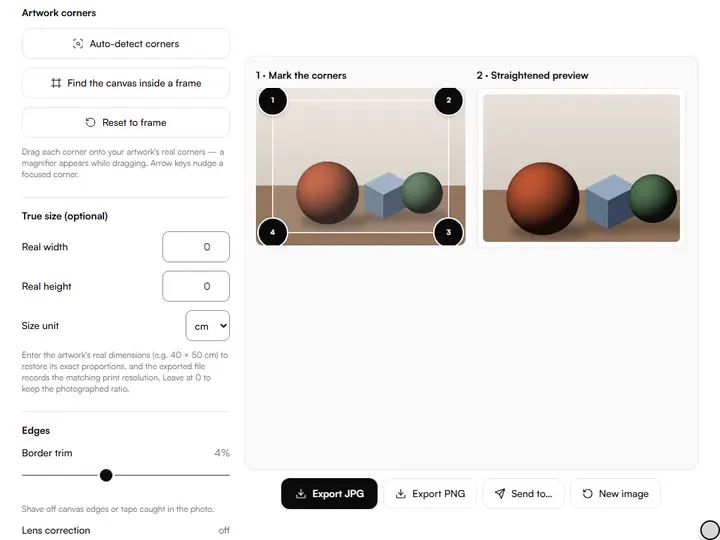
What the Artwork Photo Straightener does
The Artwork Photo Straightener corrects perspective from four corners, finds edges by their lines, and exports at full resolution.
Perspective correction
The Artwork Photo Straightener solves a homography from the four marked corners and maps the photographed shape onto a rectangle, so the canvas edges come out parallel and square again. Geometry is the first fix among the artwork photo tools, since cropping and color decisions then rest on the artwork's true shape.
Line-based edge detection
Corner detection runs an edge map of the photo through a Hough transform and keeps the strongest pair of near-vertical and near-horizontal lines on opposite sides of the center. The corners sit where those four lines cross, and Find the canvas inside a frame repeats the search inside them for the next rectangle in.
Implausible shapes rejected
The detector discards any result that is not convex, covers less than a tenth of the photo or has corners far outside it. The corners then fall back to an inset rectangle for you to place by hand.
Full-resolution export
The export repeats the warp on the original, full-size photo in a Web Worker with bilinear resampling, while the on-screen preview stays at 720 pixels or less.
Size and trim kept in the link
The corners, Real width, Real height, Size unit, Border trim and Lens correction are stored in the page address. Corners from a link are kept when the photo loads instead of being detected again.
Photo stays on your device
The straightener detects, warps and exports inside the browser, with the edge map and the full-size warp in a Web Worker, and never sends the photo to a server.
For artists who photograph flat work
Working painters, artists who sell, illustrators and art teachers straighten photographs of flat work with it.
Working painters
Entering a canvas's measured size, such as 40 × 50 cm, returns a portfolio image at the painting's own 4:5 proportions.
Artists who sell
Border trim removes the strip of wall or easel around a canvas before the image goes into a shop listing.
Illustrators
A drawing photographed at an angle on a desk can be squared by dragging the four corners onto the paper's edge.
Art teachers
Student drawings pinned to a wall and shot from standing height can be squared one after another with the same Border trim.
Why do photos of artwork need straightening?
Photos of artwork need straightening because, unless the camera sensor is perfectly parallel to the wall, a rectangular artwork photographs as a trapezoid: the top narrower than the bottom, one side longer than the other. Keystoning like this is invisible until you compare, then the painting looks subtly wrong everywhere at once.
A good result starts at the corner marks. Place them on the artwork itself: the edge of the canvas or paper, not the frame, not the wall. Auto-detect works well when the artwork contrasts with its background; on a busy wall or a low-contrast photo, place the corners by hand.
Restoring true proportions
Straightening removes perspective distortion, but it cannot know your artwork's real aspect ratio: a photo of a square painting and a slightly rectangular one can look identical. When proportions matter, as they do for portfolio images and prints, measure the artwork and type in its width and height. The exported JPG or PNG then records its print resolution too, so a layout app opens it at the artwork's real size.
With the real size left at 0, the ratio comes from the longer top-or-bottom edge and the longer side edge as photographed. That estimate is close for a photo taken nearly square-on and drifts as the camera angle grows, because edges receding from the lens are foreshortened.
Fitting a reference photo to a canvas you have not painted yet is a different job: crop to canvas size trims a photo to a canvas ratio and leaves its perspective alone.
Photographing artwork better next time
Correction is good; not needing it is better. Hang the artwork flat and vertical, stand square to its center, and bring the camera to the artwork's mid-height: keystoning comes from a camera angled up, down or sideways at the work. Use even, diffuse light from both sides at 45° to avoid glare, turn off the flash, and leave a little breathing room around the edges so all four corners stay in the frame.
Indoor light also leaves a color cast. After straightening, open the result in the artwork white balance and color fix tool, which rebalances the whole image from a single neutral spot you click.
Further reading
The page below goes further into the ideas the Artwork Photo Straightener works with, and opens on the site named beside it.
- Photographing your artwork: light, angle and color (ArtisticMasterclass.com)
Tips from a working artist
From Sujith Puthran, artist and founder: what I actually do at the easel.
Zoom your attention, not the camera: shoot the whole artwork with margin around it, cropping and straightening handle the rest, and digital zoom only costs detail.
Mark corners on the artwork's edge, not the frame's outer edge, unless the frame is part of the presentation you want to keep.
If auto-detect picks the wrong rectangle (a door, a poster behind), don't fight the heuristic: place all four corners by hand.
Use the border trim instead of re-marking when only a thin strip of wall or tape snuck in.
Export PNG if you plan further edits; JPG for sharing: re-saving JPGs compounds compression artifacts.
Why your picture stays on your device
The Straightener is a program your browser downloads and runs by itself. When you choose a picture, the browser reads it from your files and does the work on your own phone or computer; no copy is sent to this site or to anyone else, and what you export is saved straight from the browser. That is why there is nothing to upload and nothing to sign up for. The privacy page says what the site does collect.
Questions about the Artwork Photo Straightener
The 8 questions below cover marking corners, the method of perspective correction, and the size and quality of the exported file.
Marking corners
The auto-detect found the wrong shape. What now?
When the auto-detect finds the wrong shape, drag the four corners onto the artwork by hand. Detection picks the strongest upright and level edges in the photo, so frames, doors and posters sometimes win. Detection runs when you load a photo (unless the link already holds corners) or press Auto-detect corners, so your placement stays put.
How do I place a corner precisely?
To place a corner precisely, drag it and watch the magnifier, then focus the corner and use the arrow keys for the last adjustment: each press moves it by 0.2 percent of the photo's width or height.
The method
How does perspective correction work?
Perspective correction works from the four corners you mark, which define a homography: the exact math of how a flat rectangle looks from your camera's position. Inverting it maps every pixel back to where it would be if the camera had faced the artwork squarely.
Why do I need to enter the real dimensions?
You don't need to enter the real dimensions, but a photo alone can't tell a 40 × 50 cm canvas from a 40 × 52 cm one once perspective is removed. Entering the true size restores the exact proportions; skipping it keeps the proportions implied by your corner marks.
Should I straighten or white-balance first?
Straighten first. The straightened file contains only the artwork, so the wall and floor are gone before you pick a neutral spot and judge exposure and levels by eye.
Files and privacy
How large is the exported image?
The exported image keeps the artwork's pixel size in your original photo, measured along its longer top-or-bottom edge and longer side edge; with a real size entered, the height follows from the width. Anything above 40 megapixels is scaled down to fit.
Will the exported image lose quality?
Yes, the exported image loses a little fine detail, though the export runs at your photo's full resolution with bilinear resampling. Pixels are re-interpolated by the warp, so fine detail softens slightly; straighten once from the original photo rather than re-straightening an exported file.
Is my artwork photo uploaded anywhere?
No, your artwork photo is not uploaded anywhere. Detection, warping and export all run in your browser on your device. Nothing is sent to a server.
Drop in a photo, check the four corners, and export a straightened JPG or PNG from the full-size original.
Free · No sign-up · Runs in your browser