Free Hue / Value / Chroma Separator
Split any reference or painting into the three dimensions painters actually mix: value only, hue only and chroma only. Point at any spot to read its Munsell notation, see chroma relative to the most each hue and value can hold, and print all four views on one sheet. Exports PNG and PDF. Free, with no sign-up, and your picture never leaves your device.
Drop an image here, or paste from clipboard
Your image stays on your device. Nothing is uploaded.
JPG, PNG, WebP, GIF, AVIF or BMP
Munsell reading on hover.Point at any spot for its approximate Munsell notation, from the 1943 renotation data, averaged over 5 × 5 pixels.
Relative chroma.Chroma as a share of the most the sRGB gamut holds at that hue and value, as a view and a reading.
Chroma spread.A histogram of relative chroma across the picture, with its median and the share above half strength.
Four-view sheet.The picture and its value, hue and chroma views on one A4 or Letter page, with the heat scale.
- Free
- No sign-up
- Runs in your browser: your image never leaves your device
What is a hue, value and chroma separator?
A hue, value and chroma separator splits a picture into its three colour attributes and shows each on its own. This one draws value as grey, hue at one fixed strength and chroma as a heatmap, reads any spot in approximate Munsell notation, and measures chroma against the most each hue and value can hold.
How to use the Hue / Value / Chroma Separator
The tool takes 6 steps, all on your device.
Drop in your reference photo or a photo of your painting (it never leaves your device), or try a sample.
Switch the view above the picture: Picture, Value, Hue or Chroma.
In the Chroma view, choose Relative (chroma as a share of the most possible at that hue and value) or Absolute.
Point at the picture to read the spot under the pointer: its approximate Munsell notation, value, hue, chroma and relative chroma. Click or tap to pin a sample; with the picture focused, arrow keys move it and Escape clears it.
Read the Chroma spread histogram to see how much of the picture is quiet and how much is near full strength.
Export the current view as a PNG, or download the four-view sheet as a PDF for the studio wall.
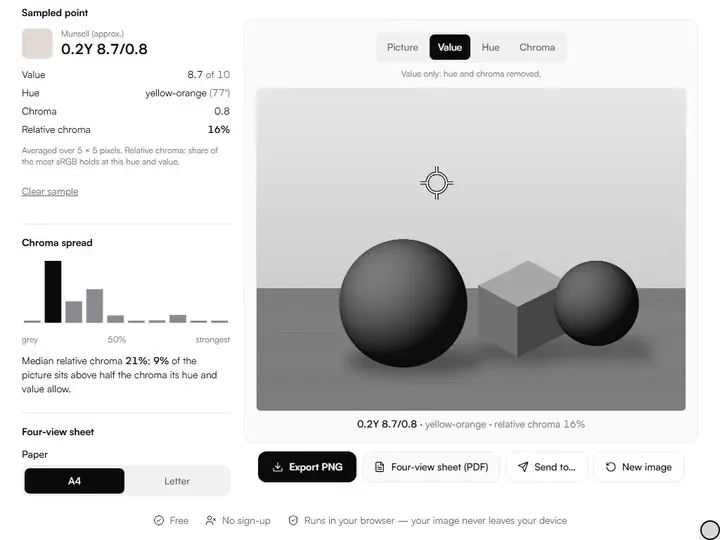
What the Hue / Value / Chroma Separator does
The Hue / Value / Chroma Separator splits a picture into views in a perceptual colour space, with Munsell notation for the readings.
Views in a perceptual colour space
The three views are computed in OKLab and its polar form OKLCh, a colour space designed so that equal steps in its numbers look like near-equal steps in colour. Within our color tools for artists, the separator is the step before mixing: taking a reference apart attribute by attribute.
Munsell notation for the readings
Each reading is converted to Munsell hue, value and chroma with the same method as the Munsell color converter: value from luminance by the ASTM D1535 formula, hue and chroma interpolated among the 2,734 chips of the 1943 renotation under Illuminant C.
Relative chroma, exactly
For every lightness and hue the tool finds the strongest chroma inside the sRGB gamut by bisection, kept in a 129 × 360 table that agrees with the exact search to within 1% of the largest chroma. A pixel's relative chroma is its chroma divided by that limit: 0 for grey, 100% on the gamut's edge.
Hue at one strength
The Hue view keeps each pixel's OKLCh hue angle and redraws it at a fixed lightness and chroma, which start from the image's averages. Pixels below an OKLCh chroma of 0.004 stay grey, because a neutral has no hue angle to show.
Two chroma scales
Absolute runs from blue at neutral to red at an OKLCh chroma of 0.37, the strongest in sRGB, so heatmaps of two photos compare directly. Relative runs from blue at grey to red at the most each hue and value can hold, so a dark blue and a light yellow at full strength both read red.
Private, with settings in the link
Every view, reading and PDF is computed in your browser; nothing is uploaded. The view, the chroma scale, both Hue view settings and the pinned sample stay in the page address; the image does not.
For painters who mix from a reference
Beginners, working painters, art students and art teachers separate the three when a mix is made from a reference.
Beginners
Start in the Value view to check that a reference reads as clear light, middle and dark shapes before choosing colours.
Working painters
Point at the light, halftone and shadow of one form and compare their Munsell notations before mixing.
Art students
Run a master painting through the relative chroma view and the histogram to see how little of it sits at full strength.
Art teachers
Print the four-view sheet of one painting and let a class read its value plan, hue plan and chroma plan side by side.
Thinking in three dimensions instead of one soup
Every colour has three attributes: hue family, value (how light or dark it is) and chroma (its strength compared with a grey of the same value), the three around which Albert Munsell organised his colour system. A photograph fuses them, so the eye struggles to tell whether a shadow is dark because its value dropped or because its chroma fell, or whether a scarf is a different hue from the cheek or the same hue at a higher chroma.
The Value view keeps OKLab lightness and drops the rest, so warm and cool passages of equal lightness collapse to one grey. For value alone, with a histogram and a check of your painting against the reference, the value checker uses the same OKLab greyscale.
Why relative chroma matters
Absolute chroma treats every hue alike, but colours are not built alike. A yellow can be very strong near white; a blue reaches its strongest only when it is dark; near white or black almost nothing can be strong at all. So a pale cream that looks quiet in the absolute view can be close to the most a colour that light can hold, and a dark blue that looks strong can have room to spare.
Relative chroma asks the painter's question instead: how far is this passage toward the strongest it could be at its hue and value? It explains why a highlight on a yellow apple can read as intense with little colour in it, and why a deep blue shadow can take far more chroma before it jumps forward. The limit here is the sRGB screen gamut; paints have their own limits, which differ from a screen's, so read it as a comparison within the picture.
The chroma spread
The histogram counts the whole picture by relative chroma, from grey on the left to full strength on the right, with the bin of the spot you are reading marked. A painting can keep most of its area low and reserve high chroma for small passages; the median and the share above half strength put a number on how your own picture does it. To find every area of one particular mix instead, the color isolator keeps everything within a colour difference of a sampled spot.
Chroma is not temperature: the color temperature and saturation map shows which areas run warm or cool.
Sampling points like a colour checker
Point at the light side of a cheek, the halftone, the shadow and the reflected light, and the four notations show how value, hue and chroma change as the form turns. Each reading averages a 5 × 5 pixel patch so JPEG noise does not throw it.
Further reading
The page below goes further into the ideas the Hue / Value / Chroma Separator works with, and opens on the site named beside it.
- Color theory for painters, in plain language (ArtisticMasterclass.com)
Tips from a working artist
From Sujith Puthran, artist and founder: what I actually do at the easel.
Check the Value view first: if the composition fails in grey, no amount of hue will save it.
In the Hue view, watch for passages that turn the same colour: they are one hue at different chromas, and can be mixed from one base puddle.
In the relative chroma view, protect the hottest spot: grey everything around it down and it will glow without any pure tube colour.
Why your picture stays on your device
The HVC Separator is a program your browser downloads and runs by itself. When you choose a picture, the browser reads it from your files and does the work on your own phone or computer; no copy is sent to this site or to anyone else, and what you export is saved straight from the browser. That is why there is nothing to upload and nothing to sign up for. The privacy page says what the site does collect.
Questions about the Hue / Value / Chroma Separator
The 5 questions below cover relative chroma and the Munsell reading, then the four-view sheet and privacy.
Reading it
What is relative chroma?
A pixel's chroma as a share of the strongest chroma the sRGB gamut holds at the same lightness and hue. Grey reads 0%; a colour on the gamut's edge reads 100%, whether it is a pale yellow or a dark blue.
Why does a pale highlight read high in relative chroma?
A pale highlight reads high in relative chroma because the gamut narrows near white: at a very light value most hues can only be slightly coloured. A cream that is nearly as coloured as anything that light can be reads high, even though its absolute chroma is small.
How accurate is the Munsell reading?
The Munsell reading is an approximation from screen colour, interpolated in the 1943 renotation data; it does not measure a physical chip, and exposure and white balance move it. Use it to compare spots in one picture.
Files and privacy
What is on the four-view sheet?
The four-view sheet is one landscape page, A4 or Letter. The page holds the picture, the Value view, the Hue view and the Chroma view in the scale you chose, each captioned, with the heat scale, the median relative chroma and the share above half strength.
Does the Hue / Value / Chroma Separator upload my photo?
No, the Hue / Value / Chroma Separator does not upload your photo.
Load a reference, read it in each view and point at the spots you will have to mix.
Free · No sign-up · Runs in your browser