Free Crop to Canvas Size
Frame your photo to the exact proportions of your canvas or paper: drag the locked-ratio crop, add a gallery wrap with bleed, and export at print resolution as PNG, JPG, TIFF or a zip of sizes. Free, with no sign-up, and your picture never leaves your device.
Drop an image here, or paste from clipboard
Your image stays on your device. Nothing is uploaded.
JPG, PNG, WebP, GIF, AVIF or BMP
Canvas preset.Canvas preset fills Width and Height from A-series and US paper sizes or standard inch and centimeter canvases.
Gallery wrap.The image, a mirrored or stretched edge, or a solid color prints round the sides, with the stretcher depth and bleed added.
Target DPI.Target DPI runs from 72 to 600, with 300 suggested for reference prints and 150 for viewing at arm's length.
Crop report.The crop report lists Crop region, Export size, Effective source resolution and a Print quality verdict.
- Free
- No sign-up
- Runs in your browser: your image never leaves your device
What does cropping to canvas size mean?
Cropping to canvas size means trimming a reference photo to the aspect ratio of your canvas or paper, such as 4:5 for a 16×20 in or 40×50 cm canvas. The reference then maps onto the canvas edge to edge, so nothing is stretched and no part of the canvas is left without reference.
How to use the Crop to Canvas Size
The tool takes 6 steps, all on your device.
Drop in your reference photo (it never leaves your device) or try a sample.
Pick your canvas or paper size from the presets, or type a custom width and height.
Drag the crop frame to compose; drag the corner dot or use the slider to resize. The frame keeps your canvas ratio exactly.
Check the crop report: crop pixels, export size at your chosen DPI, and the effective resolution of the source.
Set the target DPI: 300 for a sharp reference print, 150 for large or arm's-length viewing.
For a gallery-wrapped canvas, choose how the sides print and set the stretcher depth and bleed; then export as PNG, JPG or TIFF.
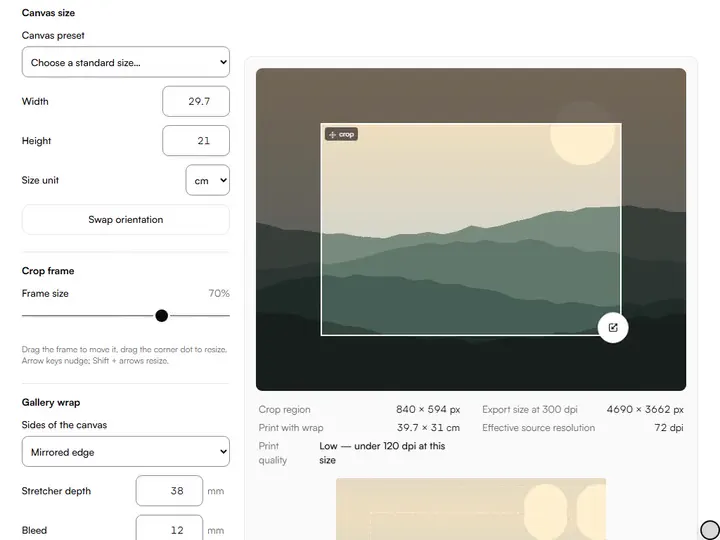
What the Crop to Canvas Size does
Crop to Canvas Size locks the crop frame to the canvas ratio, sizes the export for print, and warns before an upscale.
Locked-ratio crop frame
The crop frame is locked to the width-to-height ratio of the canvas you enter, so every position and size you try still fits that canvas. Fitting the reference before the first line is part of the preparation the artwork photo tools cover, alongside straightening and color correction.
Export sized for print
The export size is the canvas's physical size multiplied by Target DPI, so a 40 × 50 cm canvas at 300 dpi exports at 4724 × 5906 pixels, and the file records that resolution for the print shop. The crop is resampled with high-quality smoothing, up to a 40-megapixel memory guard.
Effective resolution
Effective source resolution divides the crop's real pixels by the canvas size in inches, which shows how much detail the print actually carries. At 240 dpi or more the verdict reads Sharp, from 120 it reads Acceptable for a working reference, and below 120 it reads Low.
Upscale warning
An upscale note appears whenever the crop supplies fewer pixels than Target DPI asks for, naming the effective dpi it reaches. Mirrored, stretched and color wraps leave the photo for the front only.
Canvas setup kept in the link
Width, Height, Size unit, Target DPI and the wrap settings are stored in the page address and survive loading a new photo. More canvas sizes crops the same composition for several canvases at once, as one zip.
Photo stays on your device
Crop to Canvas Size reads, previews and resamples the photo inside the browser and sends no image data to a server.
For artists matching a reference to its support
Working painters, draughtsmen, beginners and art teachers match a reference to its support with the crop.
Working painters
Swap orientation turns the 24 × 36 in preset into a 36 × 24 in landscape frame before the underpainting starts.
Draughtsmen
Paper presets from A6 to A1 and from US Letter to Tabloid crop a reference to the sheet before a grid or sight-size transfer.
Beginners
The Print quality line says in plain words whether a phone photo holds enough detail for the chosen canvas.
Art teachers
One link with Width, Height and Target DPI already set gives a whole class the same canvas setup for their own references.
Why crop to the canvas ratio before you draw
Almost every reference photo arrives in the wrong proportions. The camera records its own ratio, your canvas might be 4:5 or 2:3, and the difference has to go somewhere. If you ignore it, you discover the mismatch halfway through the drawing, when the head you placed carefully no longer fits, or an awkward empty strip appears at the bottom of the canvas. Cropping to the canvas ratio first moves that decision to the cheapest possible moment: before a single line is drawn.
Cropping is also composition. Sliding the locked-ratio frame across the photo is the same exercise as moving a viewfinder across a scene. You are choosing what the painting is about. A centimeter of shift can turn a snapshot into a deliberate arrangement, and because the frame cannot drift off-ratio, every position you try will fit your canvas.
A reference that is itself a photo of a flat artwork, shot at an angle, needs its perspective fixed before it is cropped; the artwork photo straightener squares it first.
Reading the crop report
The report answers the one question that matters for a printed reference: will it be sharp enough? Effective source resolution is the figure to watch, because it counts the source pixels each inch of the print actually receives, whatever Target DPI you export at.
If the quality reads low, the fix is rarely mysterious: crop less tightly, choose a smaller physical print size, lower the target DPI to 150, or go back and take a higher-resolution photo. Upscaling adds pixels but not information.
From cropped reference to canvas
Once the crop is right, the usual transfer routes all work: print the export and use the grid method or tracing, or open it beside your easel on a tablet. For direct measurement from print to canvas, the drawing scale and enlargement calculator gives the scale factor between the two sizes.
A practical habit: keep the crop slightly looser than your final vision. A small margin of extra scene around the subject gives you somewhere for the eye to rest and lets you adjust the final composition on the canvas itself, where the real decisions happen.
Further reading
The page below goes further into the ideas the Crop to Canvas Size works with, and opens on the site named beside it.
- Composition fundamentals for painters (ArtisticMasterclass.com)
Tips from a working artist
From Sujith Puthran, artist and founder: what I actually do at the easel.
Compose with the frame, not the feet: try at least four or five positions before settling. Dead center is rarely the answer.
Give the subject's gaze or motion more room in front than behind; the locked ratio means you trade space on the opposite side.
Watch the edges of the frame for shapes cut awkwardly in half: a crop that slices a joint or tangent reads as a mistake even in a study.
Export at 150 dpi for big canvases: at arm's length the difference from 300 is hard to see, and the file holds a quarter of the pixels.
Keep the exported file named with the canvas size (rename after download) so the reference and the canvas never get mismatched mid-project.
Why your picture stays on your device
The Canvas Crop is a program your browser downloads and runs by itself. When you choose a picture, the browser reads it from your files and does the work on your own phone or computer; no copy is sent to this site or to anyone else, and what you export is saved straight from the browser. That is why there is nothing to upload and nothing to sign up for. The privacy page says what the site does collect.
Questions about the Crop to Canvas Size
The 7 questions below cover framing, presets, the keyboard and custom shapes, then grids, print sharpness and privacy.
Framing
Why not just stretch the photo to fit the canvas?
Stretching the photo to fit the canvas changes every proportion in the scene (heads widen, circles become ellipses) and your drawing will faithfully copy the error. Cropping removes information but keeps every remaining shape true.
Which canvas and paper sizes are in the presets?
The presets cover A6 to A1 paper, US Letter, Legal and Tabloid, inch canvases from 8 × 10 to 30 × 40 in, and centimeter canvases from 18 × 24 to 80 × 100 cm. Choosing one fills Width and Height in your current size unit.
How do I move and resize the crop with the keyboard?
Focus the crop frame and use the arrow keys to move it by 1 percent of the photo per press. Hold Shift with the arrows to resize it in steps of 2 percent of the largest frame: Up and Right grow the frame, Down and Left shrink it.
Can I crop to a custom or unusual canvas shape?
Yes, you can crop to a custom canvas shape: type any width and height in millimeters, centimeters or inches. Round and oval canvases aren't supported, since the export is rectangular by nature.
Files and printing
How do I get a grid on the cropped reference?
To get a grid on the cropped reference, export the crop here, then open it in GridMakerPro (linked above the export bar), which specializes in grid overlays and composition guides.
Will the exported image be sharp enough to print?
Not always: the crop report tells you whether the exported image is sharp enough to print, because it shows the effective resolution of your crop at the physical size you chose. A Print quality verdict sits beside it, and a note warns you whenever the crop falls short of your Target DPI.
Does the Crop to Canvas Size upload my photo?
No, the Crop to Canvas Size does not upload your photo. The crop, the preview and the export all happen in your browser on your device. Nothing is sent to a server.
Drop in a reference, choose the canvas size, and export a crop that maps onto it edge to edge.
Free · No sign-up · Runs in your browser